
Infoportal
Dies ist eine alte Version des Dokuments!
Create deep projekt (Hello World for MPC555)
- Start eclipse, choose a workspace and open the deep perspective.
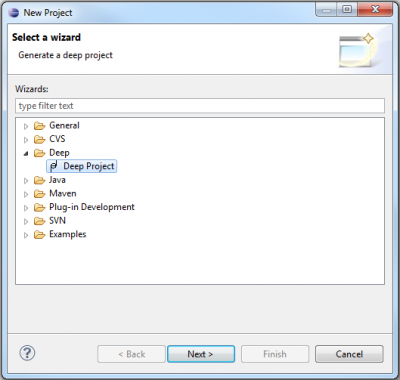
- File → New → select Project…, Deep → //select Deep Project.
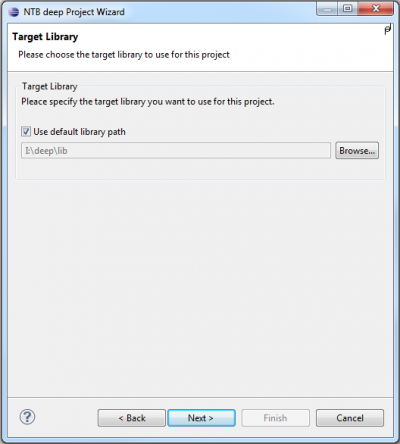
 - Target Library: ✔ use default library path
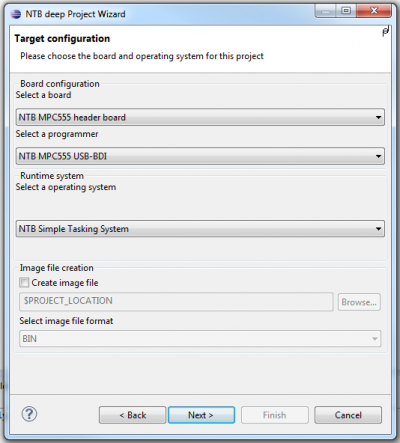
 - Target Configuration:
- Select a board: NTB MPC555 Headerboard
- Select a programmer: NTB MPC555 USB-BDI
- Select a operating System: NTB Simple tasking system
- If you like to have an image file, you can select the corresponding checkbox. This option is not necessary if you use the //NTB MPC555 USB-BDI to download to the target.
- Target Configuration:
- Select a board: NTB MPC555 Headerboard
- Select a programmer: NTB MPC555 USB-BDI
- Select a operating System: NTB Simple tasking system
- If you like to have an image file, you can select the corresponding checkbox. This option is not necessary if you use the //NTB MPC555 USB-BDI to download to the target.
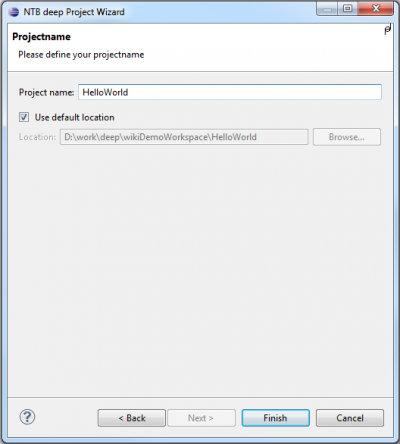
- Project name:
- Choose any project name (no spaces, no „umlauts“)
- ✔ use default location
- Finish creates the project
- The empty project will show on the left side in the package explorer.

- By right-clicking on the source folder (src) in the package explorer choose New → Package and add package name ch.ntb.stud.yourName.helloworld.

- By right-clicking on the newly created package choose New → Class and enter class name HelloWorld.
- Open class and enter source code:
package ch.ntb.stud.yourName.helloworld;

import java.io.PrintStream;
import ch.ntb.inf.deep.runtime.mpc555.driver.SCI1;

public class HelloWorld {
	static {
		// 1) Initialize SCI1 (9600 8N1)
		SCI1.start(9600, SCI1.NO_PARITY, (short)8);

		// 2) Use SCI1 for stdout
		System.out = new PrintStream(SCI1.out);

		// 3) Say hello to the world
		System.out.println("Hello, world");
	}
}
- Open project file: HelloWorld.deep
- Add the newly created class to rootclasses. It should then look like this:
project { #deep-1 meta { version = "Mon Jan 05 12:40:12 CET 2015"; description = "deep project file for HelloWorld"; } project HelloWorld { libpath = "I:\deep\lib"; boardtype = ntbMpc555HB; ostype = ntbSTS; programmertype = ntbMpc555UsbBdi; # enter names of rootclasses, e.g. # rootclasses = "test.MyFirstTestClass","other.MySecondTestClass"; rootclasses = "ch.ntb.stud.yourName.helloworld.HelloWorld"; # imgfile = "M:\Workspace\HelloWorld\HelloWorld.bin"; # imgformat = BIN; } } - Connect hardware to PC and power on.
- Open View Dialog under Window → Show View → Other….

- In the category Terminal mark Terminal and confirm with OK.

- Under Connection Type select Serial and choose settings according to the settings of the SCI on the target from paragraph 9 above. Check the port number with your operating system.

- Mark project file „HelloWorld.deep“, either by right-clicking Run As → Deep Application

or with pulldown menu of the run-button Run As → Deep Application

will the programm be compiled, linked and downloaded. - The USB Log shows Hello, World.
- With
 you can recompile and rerun the programm.


